Limit Supported Operating Systems with Enrollment Settings
Supported operating systems displayed on your enrollment code redemption and self-enrollment forms can be restricted to Mac and/or Windows along with adjustment of the minimum supported operating system version your organization supports. The following explores the options that can be controlled from your Dashboard.
Enrollment Settings
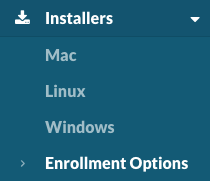
To adjust enrollment settings, visit the Enrollment Options section of the Installers page on your dashboard.
Click on Settings button.
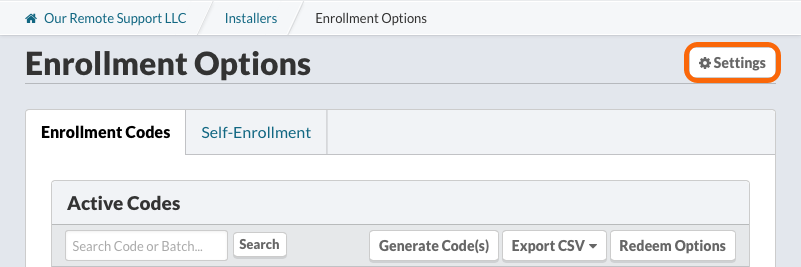
or navigate to app.monitoringclient.com/installers/enrollment/settings
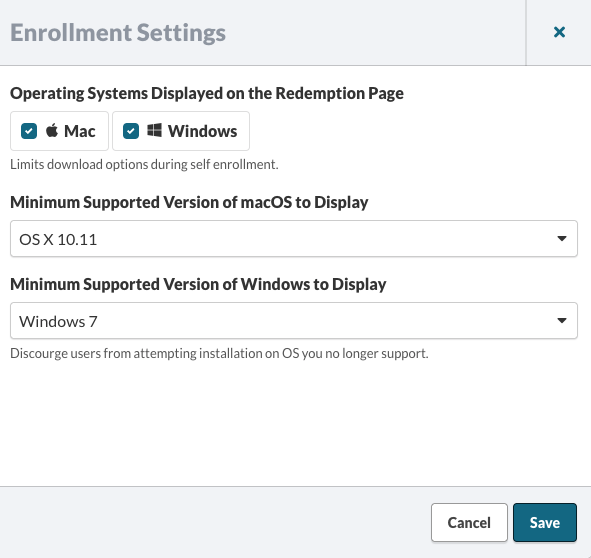
Operating Systems
If your organization only supports one operating system, you can choose not to offer your Monitoring Client installer for a particular operating system.
When you support Mac and Windows installers, your users will see an alternative link to the Monitoring Client installer.
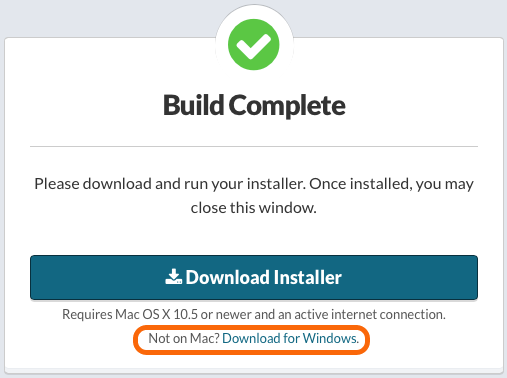
When only a single operating system, no alternative download will be provided.
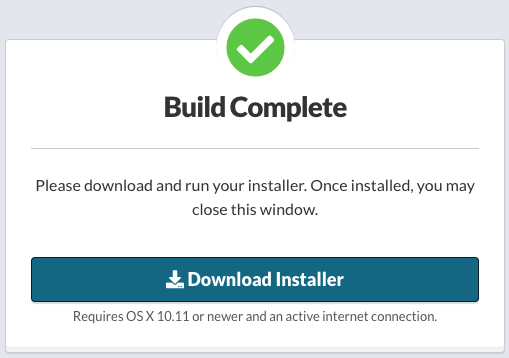
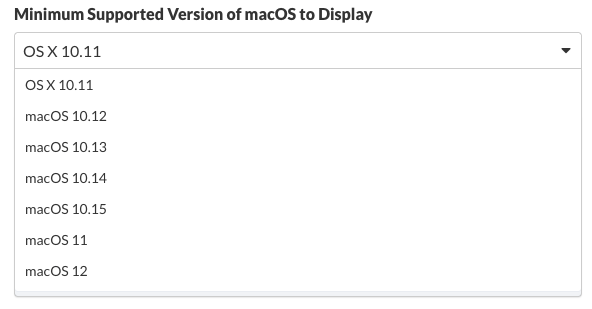
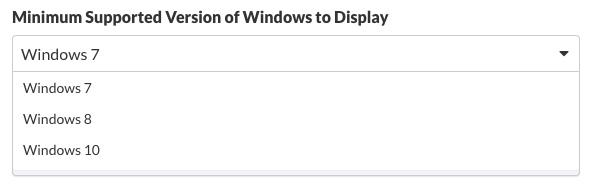
Minimum Support Version to Display
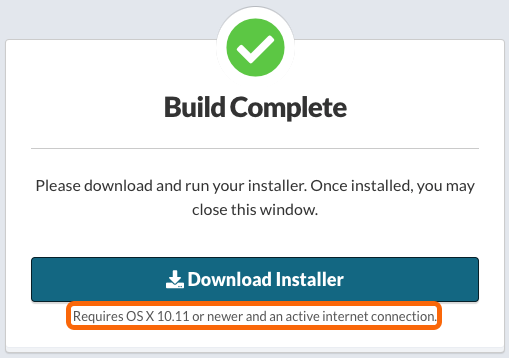
The Minimum Supported Version to Display changes the text displayed under the Download Installer button.
Note
Setting a minimum Supported Version to Display only affects the text on the enrollment form. It does not affect the actual installation requirements for the Monitoring Client.
Related Articles
Permalink: https://watchmanmonitoring.com/enrollment-settings