Using the Windows MSI Monitoring Client Installer
The Windows MSI installer is an easily distributable and customer-facing installer for your Monitoring Client.
Download the Installer
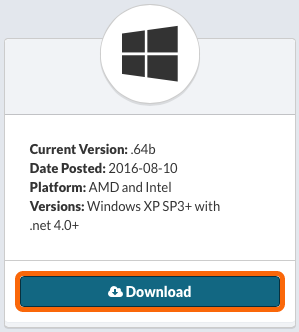
Download the installer from your Watchman Monitoring Dashboard, or use the direct link to your MSI installer.
https://SUBDOMAIN.monitoringclient.com/downloads/MonitoringClient.msi
Double-Click on the MonitoringClient.msi.
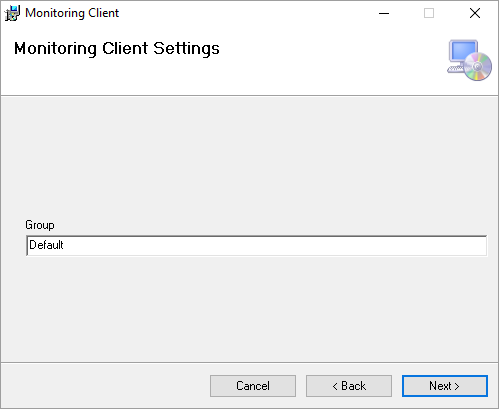
Enter the desired Group Name and click Next.
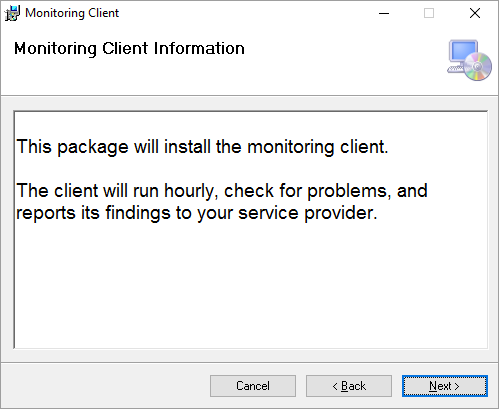
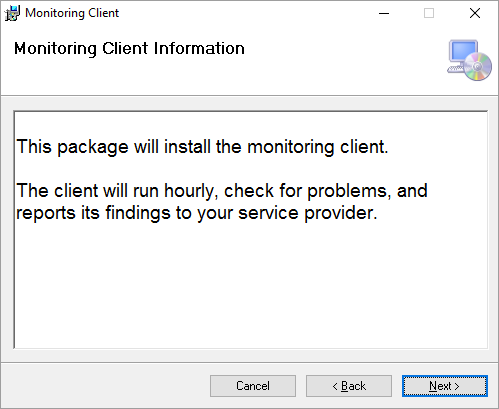
You’ll be presented with information about the package being installed, click Next.
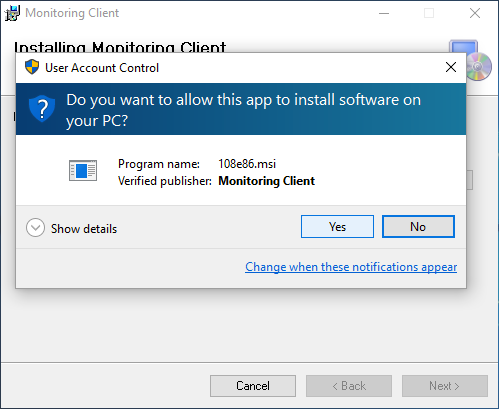
Click Yes to allow the Monitoring Client to install.
Once installed, click Next.
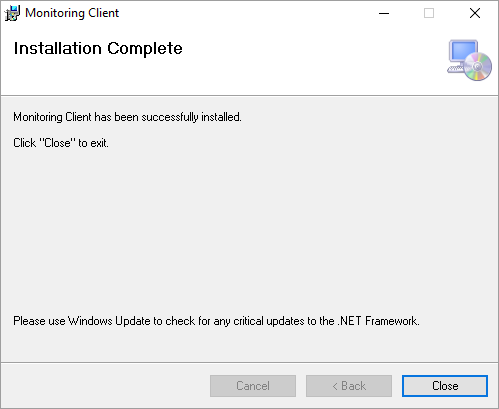
Once completed, click Close.
Command Prompt Installation
The MSI can also be installed using the msiexec command in a Command Prompt.
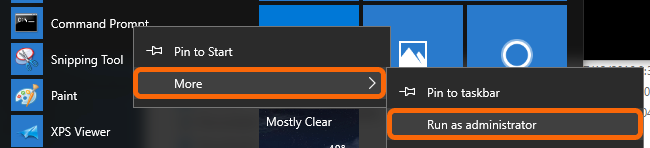
Open a Command Prompt an an Administrator by right-clicking on Command Prompt > More > Run as administrator.
The msiexec command allows for specification of the Group with the following structure:
msiexec /i "https://SUBDOMAIN.monitoringclient.com/downloads/MonitoringClient.msi" /qn CMDLINE="ALLUSERS=TRUE Group=""Prentendco"""
The /qn flag sets the User Interface Level to none or a silent installation.
Note
Learn more about msiexec on Microsoft’s MSDN Site.
You can also add the Group registry entries using the following commands:
For a 64-bit OS
REG ADD KeyName HKLM\SOFTWARE\WOW6432Node\MonitoringClient /v ClientGroup /t REG_SZ /d Pretendco
For a 32 bit OS
REG ADD KeyName HKLM\SOFTWARE\MonitoringClient /v ClientGroup /t REG_SZ /d Pretendco
Permalink: https://watchmanmonitoring.com/windows-installation