Updating Windows Monitoring Client
The Monitoring Client will update within 24 hours of a new release. This article provides several methods for handling out-of-date Windows Monitoring Client.
Enabling/Disabling Auto-Update
In environments where auto-update is not desired, automatic updates can be disabled.
Control Panel
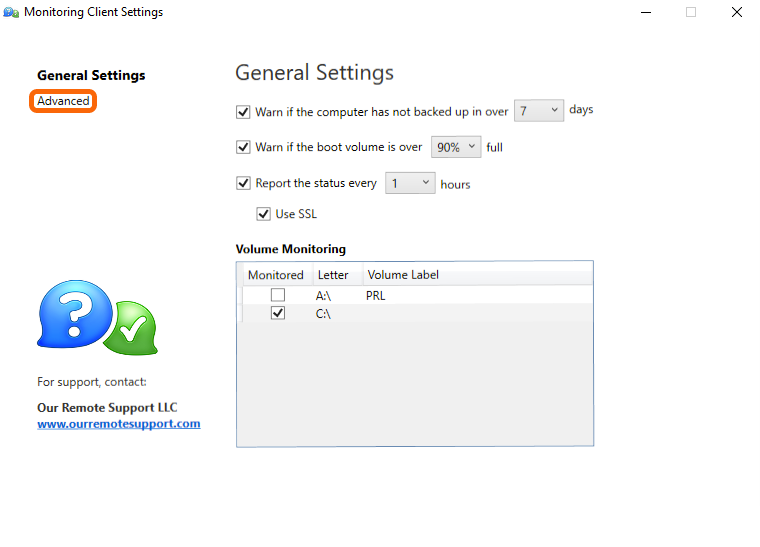
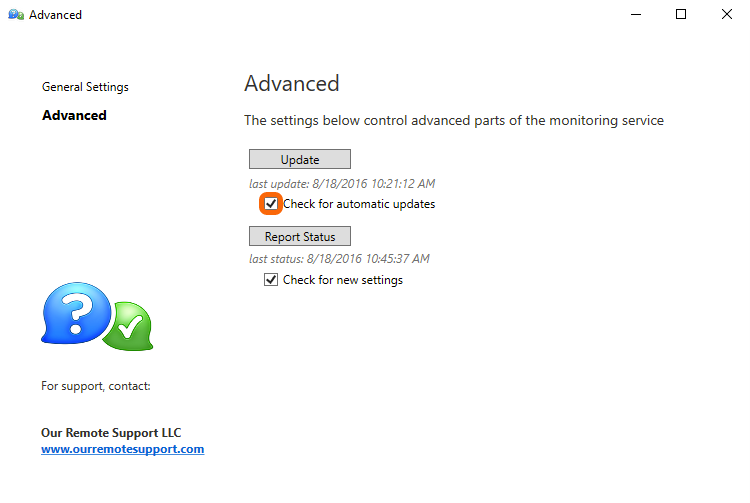
Click Advanced to access the auto-update settings.
Uncheck Check for automatic updates to disable Auto-update.
Registry Keys
The following registry keys manage the setting, and can be applied before installation
The relevant keys are:
Auto Update. Enabled by default. Set to 0 to disable
[HKEY_LOCAL_MACHINE\SOFTWARE\MonitoringClient]
“AutoUpdateEnabled”=”1”
[HKEY_LOCAL_MACHINE\SOFTWARE\Wow6432Node\MonitoringClient]
“AutoUpdateEnabled”=”1”
Adding support for TLS 1.2 to older agents
Starting June 10, 2026, the Watchman Monitoring update server only accepts TLS 1.2 connections.
Windows Computers running Monitoring Client 1.6.2.4 or later handle this automatically no action required. If you have a Computer running an older version than 1.6.2.4 and it has not updated, you can run this PowerShell script to force it to use TLS 1.2 and it should auto-update to the newest version on next sync. Enable-WatchmanTls12.ps1
To run the PowerShell script interactively:
powershell -ExecutionPolicy Bypass -File .\Enable-WatchmanTls12.ps1
Exit codes (useful if you’re wrapping this in an RMM script):
| Code | Meaning |
|---|---|
| 0 | Config in place (we wrote it, or it was already valid) |
| 2 |
Not running as Administrator |
| 3 |
Failed to write the file (permissions, AV, disk) |
| 4 |
Monitoring Client install not found |
| 5 |
An update.exe.config already exists but doesn't enable TLS 1.2 — review manually |
Manual Updating
In cases where Auto-Update is disabled, or if the auto-update process fails to complete, an update.exe is included.
Navigate to:
c:\Program Files (x86)\Monitoring Client\
and manually launch update.exe.
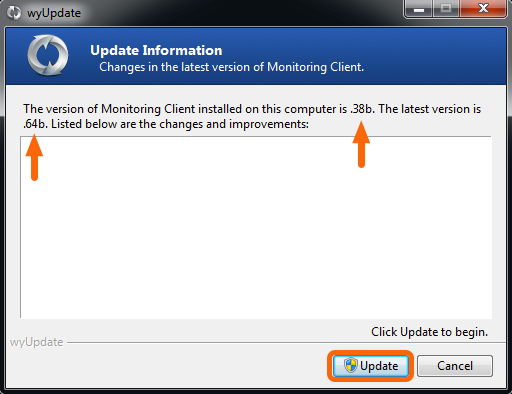
The old and new version numbers will be displayed, as well as confirmation.
(In this example the old version is .38b and new version is .64b)
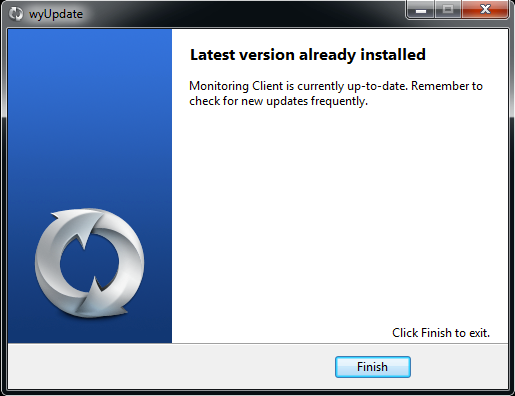
If your client is up to date you will see a dialog telling you the Latest version is already installed.
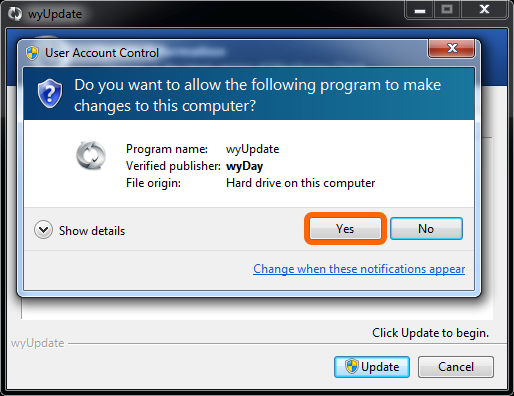
Confirm that you want to update by clicking Yes.
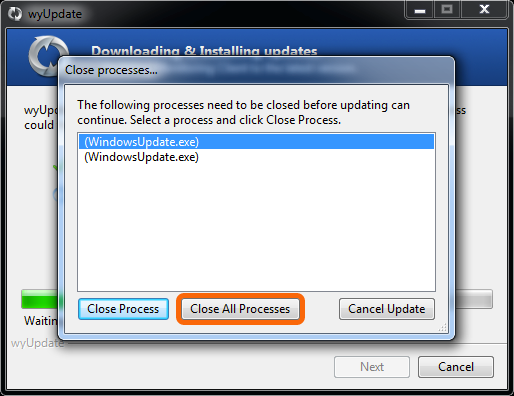
You may be prompted to Close (Quit) the any background Windows Update processes. Click Close All Processes.
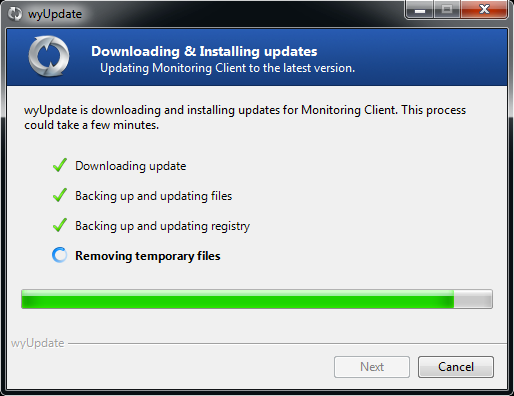
The update process will download the latest version and install it.
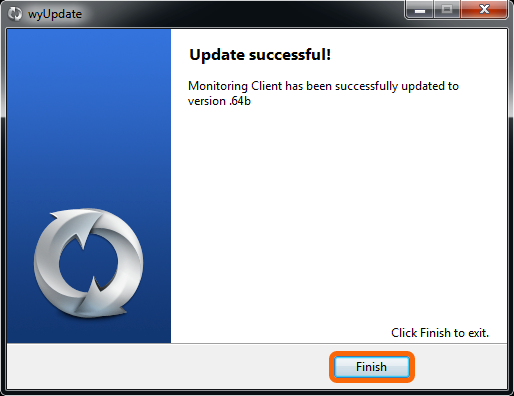
Once complete, click Finish.
Manual Updating from Command Line
To manually update from the command line, execute
"c:\Program Files (x86)\Monitoring Client\update.exe" /fromservice
Warning
The
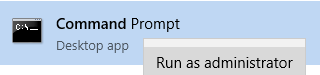
update.execommand, must be run as an administrator. You will not be prompted to elevate the access level.
Note
Calling
update.exedirectly, does not update the registry’s last update check value. Therefor the control panel timestamp will be off.
Permalink: https://watchmanmonitoring.com/windows-auto-update