Computer Overview PDF
Computer Overview Reports include specifications, errors, comments, and expirations for a single computer in a formatted PDF to share with users. This article describes accessing the Computer Overview PDF from the Computer Overview page, and customizing the overview PDF format.
Generating Computer Reports
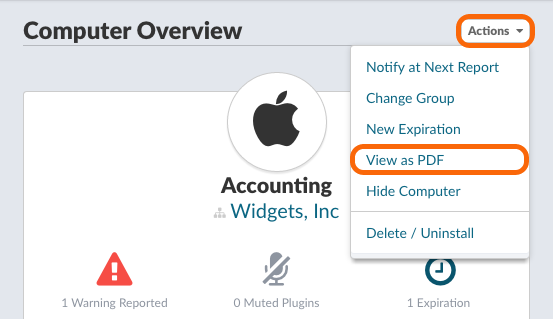
To generate a Computer Overview PDF, visit the Computer’s Overview page on your Dashboard then select View as PDF from the Actions menu.
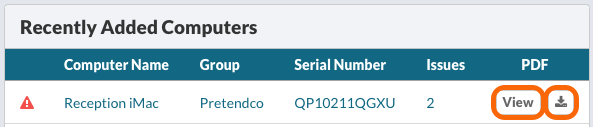
If the computer has recently been added to Watchman Monitoring, it will appear in the Recently Added Computers listing, on the far right side are quick links to View or Download the PDF of the Computer Overview.
Your PDF will open in a new window.
In the upper left corner, you can click the Close Window button to close the PDF Window.

In the upper right corner, you can Download PDF, Print the PDF, or (^) dismiss the action bar.

Note
Group and Computer Comments are displayed in Computer Overview Reports. Learn more about comments.
Editing Report Page Size, Logo Display, Headers and Footers
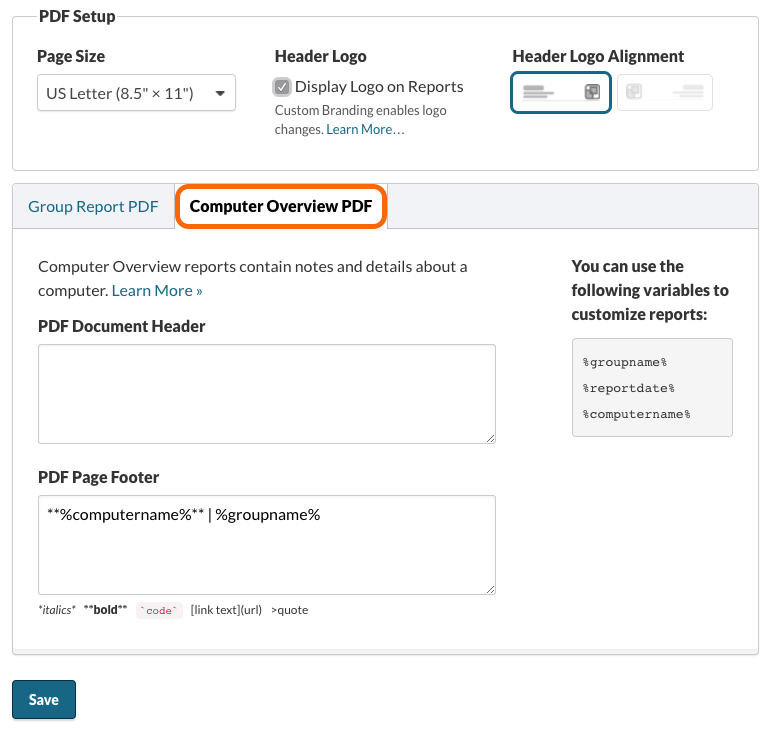
Navigate to the Settings > PDF Reports Page.
Page Size can be selected with the option of US Letter (8.5 x 11 inches) or A4 (210mm x 297mm).
If you have Custom Branding, you can choose to display your Logo, and choose right or left alignment.
The PDF Document headers and footers can be edited from the Computer Overview PDF tab.
Markdown formatting is supported, and the table displays the variable information available for PDF reports.
Sample Computer Overview PDF
Related Articles
Permalink: https://watchmanmonitoring.com/computer-overview-pdf