About the Application Monitoring Plugin
Need to ensure a certain application (or several) is running?
The Monitoring Client has the ability to determine if applications are running and will send an alert if they fail to respond.
Popular items to monitor
- POS systems
- Parallels virtual environment
- DynDNS domain updater
- Dropbox sync agent
Adding an Application to be monitored
- Click on the PreferencePane for the Monitoring Client
- Click on Settings, and continue past the configuration warning
- Unlock the PreferencePane by clicking the lock
- Enable the plugin by selecting the box next to Check Specified Applications
- Click the triangle next to Check Specified Applications
- Click on Add a New Entry
- Select the Application
- Click the lock when finished to prevent further changes
Adding a background daemon to be monitored
- Use Command-Shift-G to get the the binary’s folder instead of selecting an Application
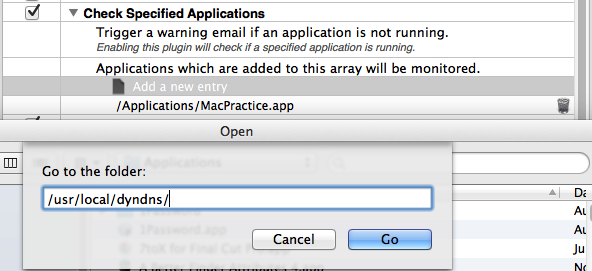
Removing an entry
- To stop monitoring a specific process, click the Trash icon next its entry.