Group Report PDF
Watchman Monitoring’s Group Status Reports creates a PDF which contains an asset list, current warnings, and comments from the selected timeframe. This article describes accessing the Group Report PDF from the Group page, and customizing the overview PDF format.
Generating a Group Status Report
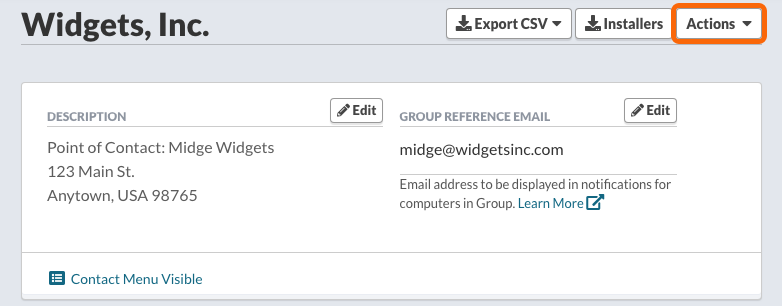
From a Group’s page, select Group Status Report from the Actions menu
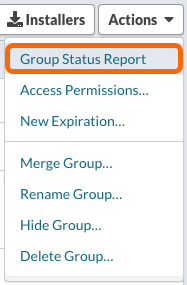
Group Status Report Settings
The Group Status Report PDF will open in a new window with the action bar.

The action bar allows you to edit the following criteria:
- Group - Select which Group’s status report will be generated.
- Include Errors? - Check this box to include current plugin warnings in the PDF.
- Include Comments? - Check this box to include all Group and Computer comments in the PDF.
- From:/To: - The start/end date range for warnings and comments that will be included in the report.
- Update Report - This will update and generate the PDF Report.
Tip
Comments are a way to showcase the work performed on any given computer. Read More about the creation of Comments here.
Note
If the PDF does not display, ensure that a PDF plugin is enabled in your browser. Learn More.
In the upper right corner, you can Download PDF, Print the PDF, or (^) dismiss the action bar.

Warning
Large groups with several 100 computers may not generate a report due to time out. Please move computers to smaller groups to produce group reports.
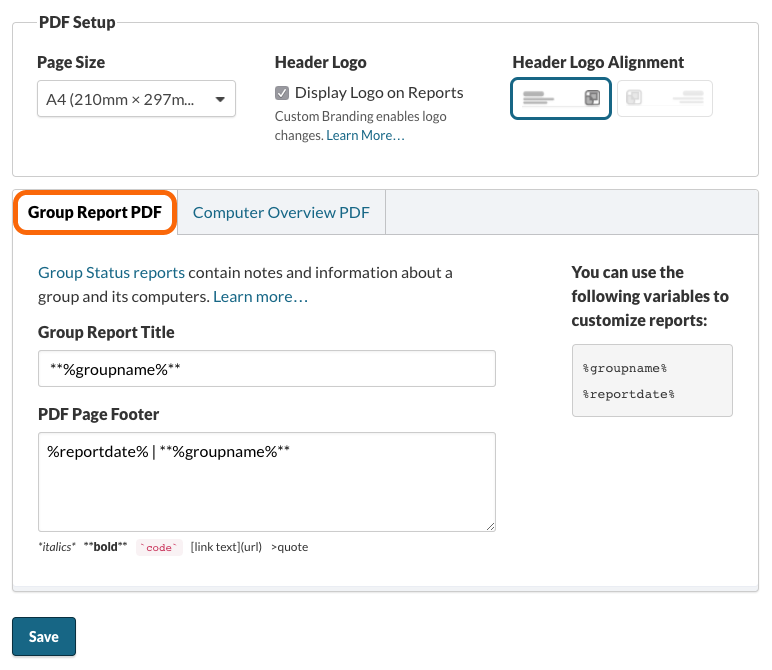
Edit Report Titles, Headers, Footers, and Page Size.
Navigate to the Settings > PDF Reports Page.
Page Size can be selected with the option of US Letter (8.5 x 11 inches) or A4 (210mm x 297mm).
If you have Custom Branding, you can choose to display your Logo, and choose right or left alignment..
The PDF Document headers and footers can be edited from the Group Report PDF tab.
Markdown formatting is supported, and the table displays the variable information available for PDF reports.
Customizing Group Reports