IT Glue Integration
Enabling the IT Glue Integration for your Watchman Monitoring Dashboard will automatically generate IT Glue Company and Configuration URLs that will be displayed on notification emails or tickets, and from the computer summary. The following guide will help is enabling your IT Glue Integration with Watchman Monitoring, and optionally enable the Watchman Monitoring sync with IT Glue.
Setup
Navigate to Integrations > IT Glue


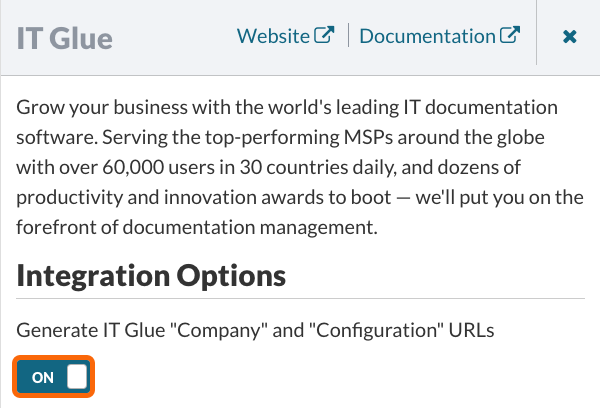
Enable IT Glue
Slide the switch to On to enable the IT Glue Integration.
An IT Glue button will be displayed on the Dashboard under Integrations and in emails for one-click access to your IT Glue account.
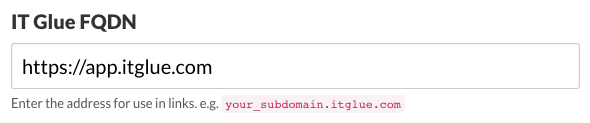
IT Glue Domain
Enter your IT Glue fully qualified domain name (FQDN), generally is in the format of
your_subdomain.itglue.com.
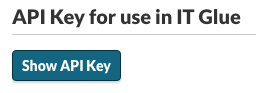
Generate API Key
Click the Show API Key button to generate an API Key for use in IT Glue.
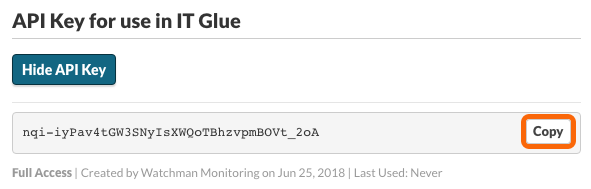
Click the Copy button to copy the API key into your clipboard.
Click Save to enable the IT Glue Integration.

Enable IT Glue - Watchman Monitoring Sync
Note
The Watchman Monitoring sync does the following:
- Discovers all groups and computers in your Watchman Monitoring subscription
- Matches Watchman Monitoring groups to IT Glue organizations based on name recognition
- Suggests IT Glue organizations based on name and pattern recognition
- Matches Watchman Monitoring computers to IT Glue configurations using a MAC address or serial number
- Suggests configurations based on exact name
In your IT Glue Dashboard, navigate to Integrations under Account.
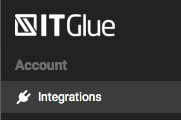
Click the + New button to view the list of available integrations.

Click on Watchman Monitoring under RMM Tools.
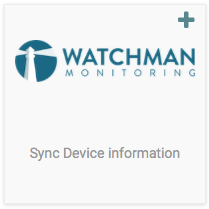
Enter your Watchman Monitoring Subdomain for the FQDN, e.g. ors.monitoringclient.com.
Paste in the API Key collected from the above enablement steps.
Click the Connect button.
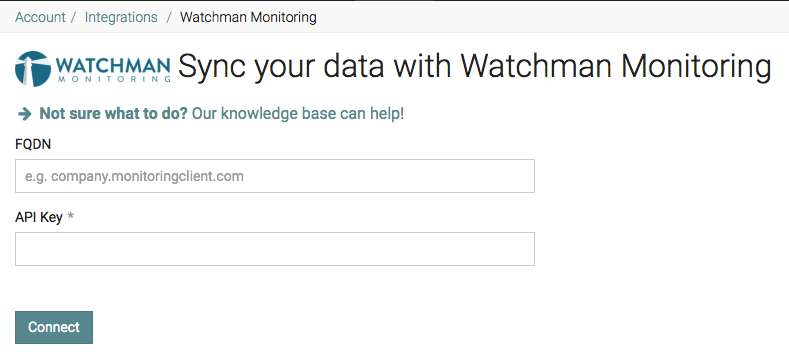
IT Glue will now use the Watchman Monitoring API to collect information from Watchman Monitoring to display within IT Glue.
Tip
By default, newly queued syncs are scheduled to take place one hour later. From the IT Glue Account Integrations screen, click Actions and then Start Manual Sync to prioritize the sync to start sooner, if desired.
Related Articles
Permalink: https://watchmanmonitoring.com/it-glue-integration