Zendesk is no longer clearing ticket mute for closed tickets
When the Zendesk integration is enabled, Watchman Monitoring automatically creates the following target extension and trigger. If you experience issues with ticket muting for closed tickets, the following will help correct the integration and clear disconnected tickets.
In the event that tickets related to an issue are not clearing and your Zendesk Target Extension and Trigger are suspect, it is best to disable the Zendesk integration and then re-enable the Zendesk integration. This process to correct any issues with the Target Extension and Trigger in your Zendesk.
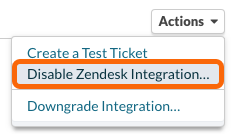
From the Actions menu, select Disable Zendesk Integration… in the Zendesk Integration.
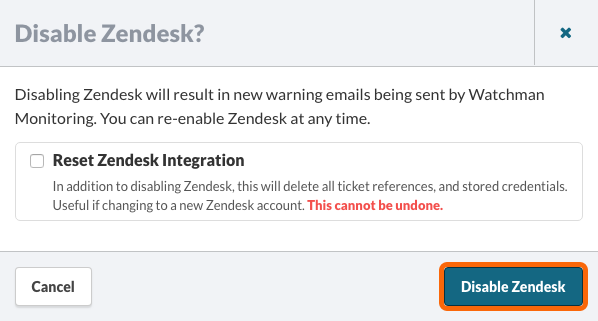
You will be displayed a dialog to confirm the disabling of the integration. Click Disable Zendesk.
Now, re-enable the Zendesk integration, but turning the Zendesk integration On.
Clearing Disconnected Tickets
If the target extension fails or tickets are deleted, there is potential for plugins to appear with a green ticket.
Watchman Monitoring will normally generate a new ticket and mute the plugin with the new ticket number.
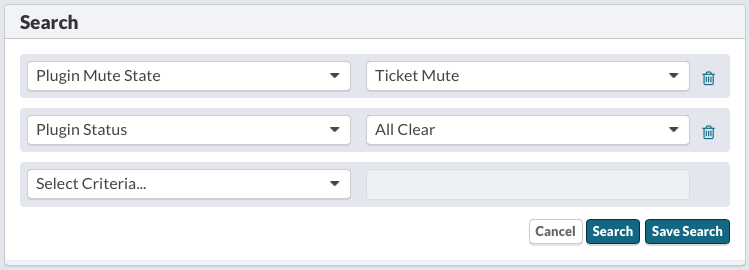
From the Plugins Results of your Dashboard, you can search for Plugin Mute StateofTicket Mute, andPlugin StatusofAll Clear.
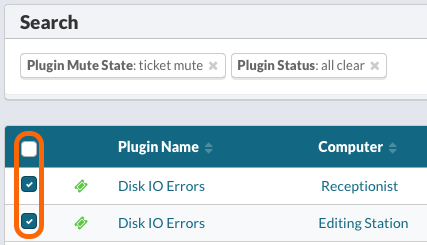
Select the plugin(s) you would like to clear, or select the top-most checkbox to select all search results.
Click the Bulk Muting Options… button.

Select the Reset All button, and then click Save.
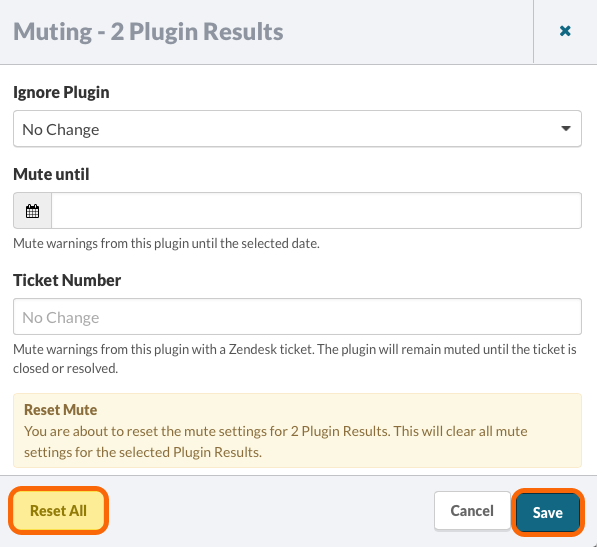
This process will clear the Ticket Number Mute from the plugin(s) selected.
Note
The following Target Extension and Trigger are provided as background for how the Watchman Monitoring integration works with Zendesk. It is highly recommended to disable and then re-enable the Zendesk integration to resolve any issues.
Target Extension
When the Zendesk integration is enabled in the Watchman Monitoring Dashboard, a target extension is automatically created.
Click on the Admin icon or sprocket on the left sidebar.
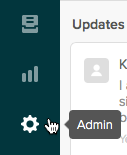
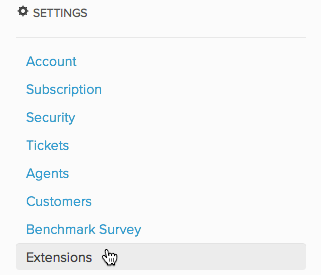
Select Settings > Extensions.
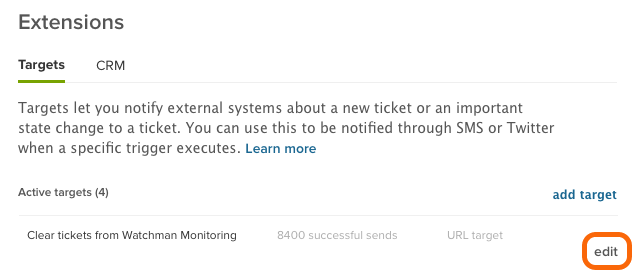
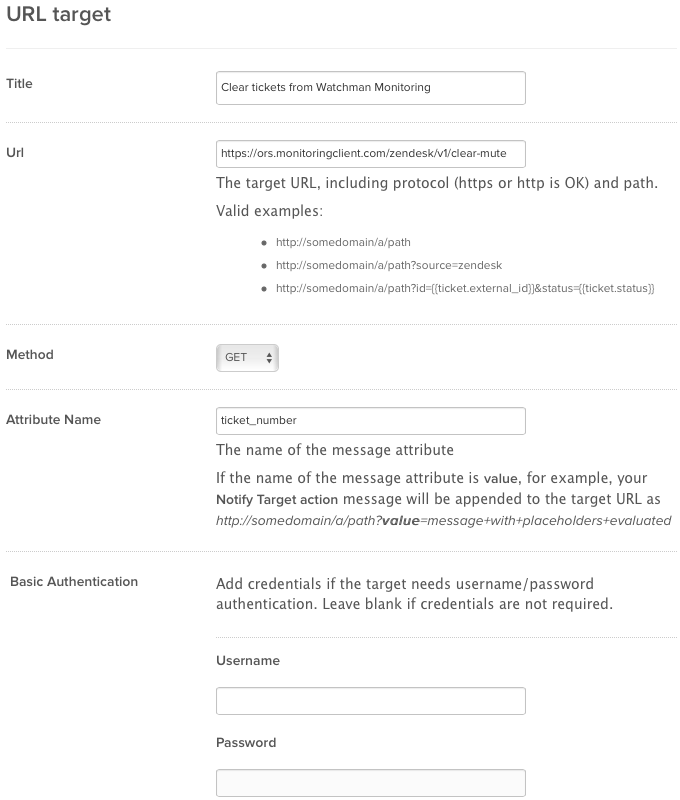
Click the edit link on the right side of the Clear tickets from Watchman Monitoring target listing.
- The Title should be Clear tickets from Watchman Monitoring.
- The URL for the target should be
https://SUBDOMAIN.monitoringclient.com/zendesk/v1/clear-mute - The Method is GET.
- Attribute Name should be
ticket_number
Note
Watchman Monitoring automatically creates the target extension. Verify that settings noted above match the extension target in your Zendesk.
Trigger
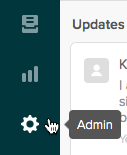
Click on the Admin icon or sprocket in the lower left corner.
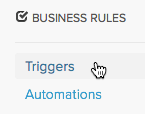
Select Business Rules > Triggers.
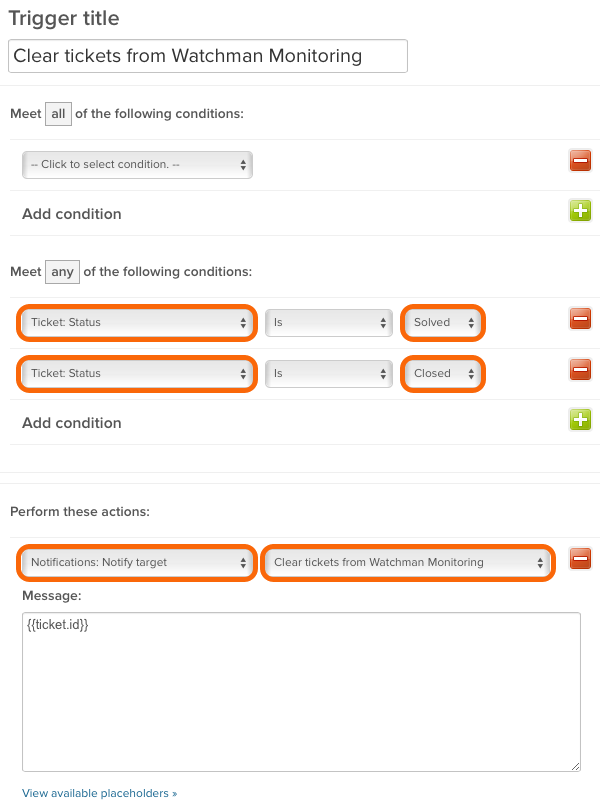
The Trigger should meet any of the conditions of Ticket: Status is Solved or Closed.
The action the Notifications: Notify target action and have Clear tickets from Watchman Monitoring extension target selected.
Trigger ordering
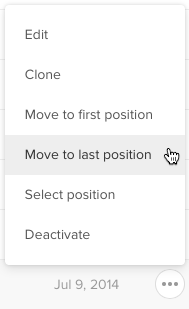
The Clear tickets from Watchman Monitoring should be moved to the last position, so it is the last trigger executed.
Hover over the Clear tickets from Watchman Monitoring trigger to show the action menu, click on this menu and select Move to last position.
Related Articles
- Integration with Zendesk for ticket management
- Using Zendesk Triggers with Watchman Monitoring
- Muting Multiple Plugin Results At One Time
Permalink: https://watchmanmonitoring.com/zendesk-integration-target-extension