Zendesk - Create Macros for Uniform Alert Responses
Create Macros to Respond to Watchman Monitoring Alerts
The following instructions are for setting up Macros to normalize responses to Watchman Monitoring Alert Tickets. Creating responses for Watchman Monitoring Alerts allows you and your team to have a consistent message and speed your response time to Alerts.
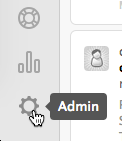
Click on the sprocket in the lower left corner.
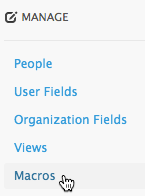
Under MANAGE click on Macros.
In the Upper right corner, click on add macro.
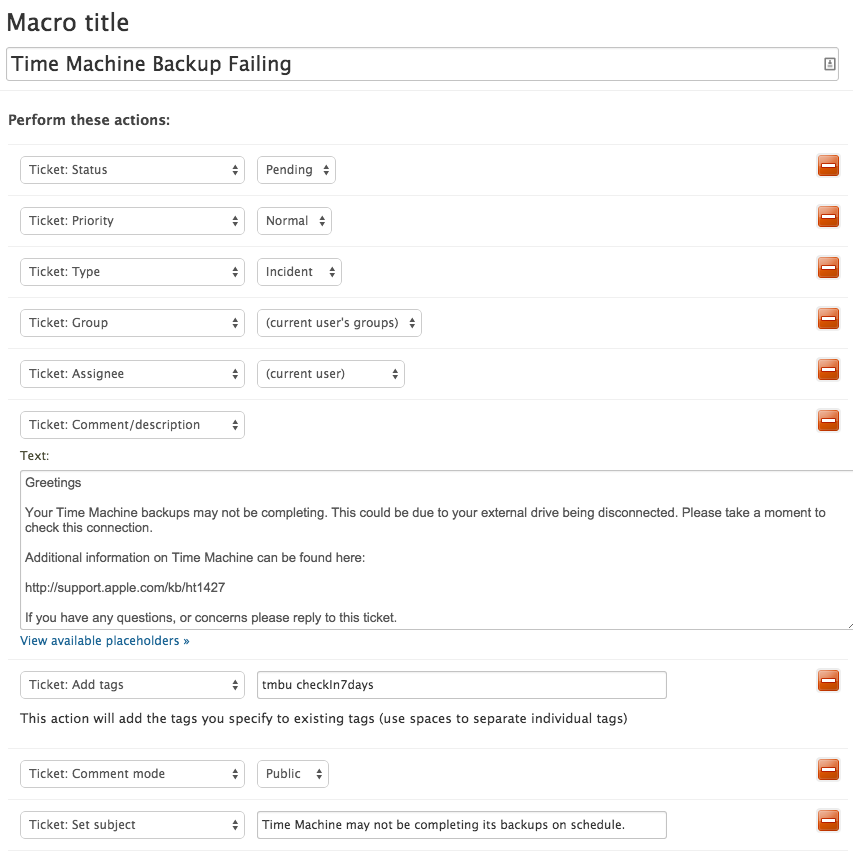
Build Your Macro to look like this:
Tip
Copy and Paste the text and Subject of the ticket in this example from here:
Time Machine may not be completing its backups on schedule.
Greetings
Your Time Machine backups may not be completing. This could be due to your external drive being disconnected. Please take a moment to check this connection.
Additional information on Time Machine can be found here:
http://support.apple.com/kb/ht1427
If you have any questions, or concerns please reply to this ticket.
Click Create Macro.

Using Macros in Zendesk
Tip
Learn about adding the Zendesk App by Watchman Monitoring to your Zendesk
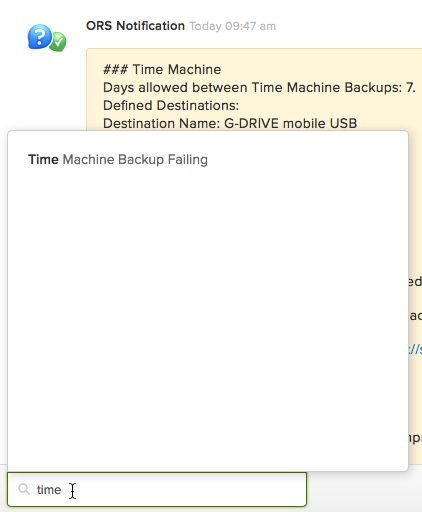
Click in the Macros field (or ctrl-option-M) and type the Macro name.
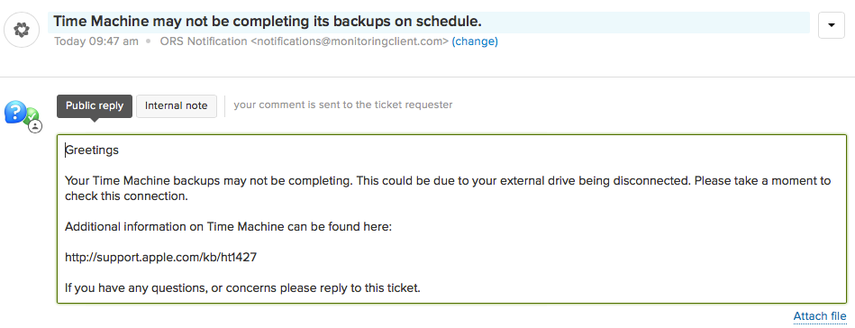
The macro changes the title and sets the reply.
Warning
You should change the requester so this message is sent to your end user.
Click Pending (or ctrl-option-P)