Configuring SAML for ADFS
Active Directory Federation Service (ADFS) is a service provided by Microsoft as a standard role on Windows servers such that a web login can be provided for the users on Active Directory. Security Assertion Markup Language (SAML) is an XML standard that allows secure web domains to exchange user authentication and authorization data. Using SAML, Watchman Monitoring can contact a separate online Active Directory to authenticate users who are trying to access the Dashboard. SAML Integration allows for Single Sign-on (SSO) to Watchman Monitoring.
Configuring Single Sign On
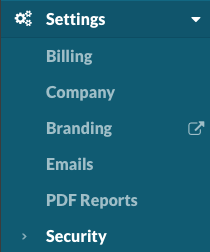
Navigate to Settings > Security
Configuring SAML
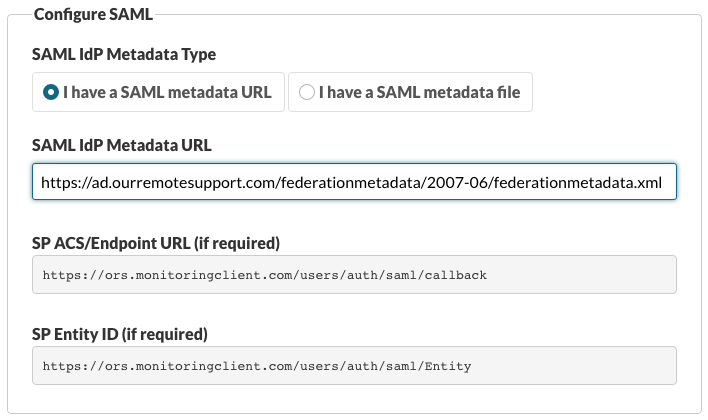
Select Sign in with SAML/ADFS to display the SAML SSO configuration options.

Enter your authentication provider SAML Identity Provider Metadata URL.
For ADFS, this URL presently ends in /federationmetadata/2007-06/federationmetadata.xml but may be different for your AD environment.
Your Callback URL ends in /users/auth/saml/callback
Visit your SAML configuraton page for the complete URL
Note
For additional SAML SSO configuration options, please see Configuring SAML for Single Sign-on.
Configuring ADFS on your Windows Server
Installing and Configuring ADFS on your Windows Server
If you have not implemented ADFS into your AD configuration, you can refer to this article for more information on how to configure ADFS.
Add a Relying Party Trust to your AD Environment
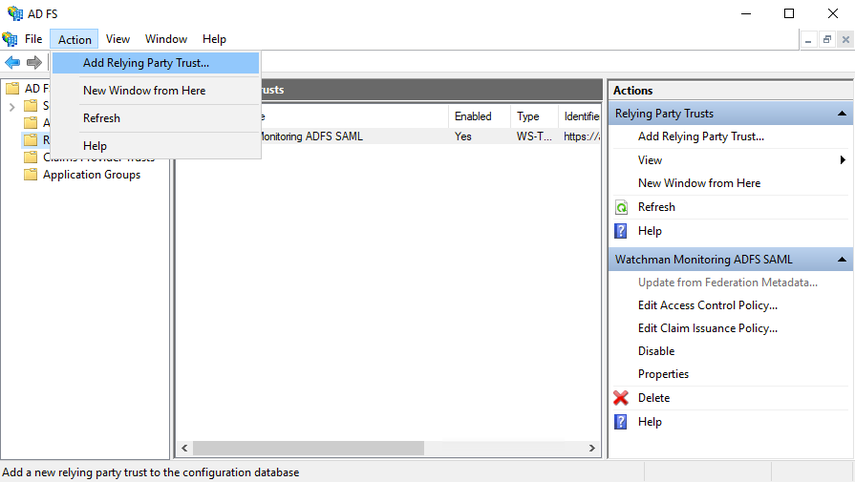
Open the AD FS Management console. Select Action menu > Add Relying Party Trust or click on Add Relying Party Trust on the right pane.
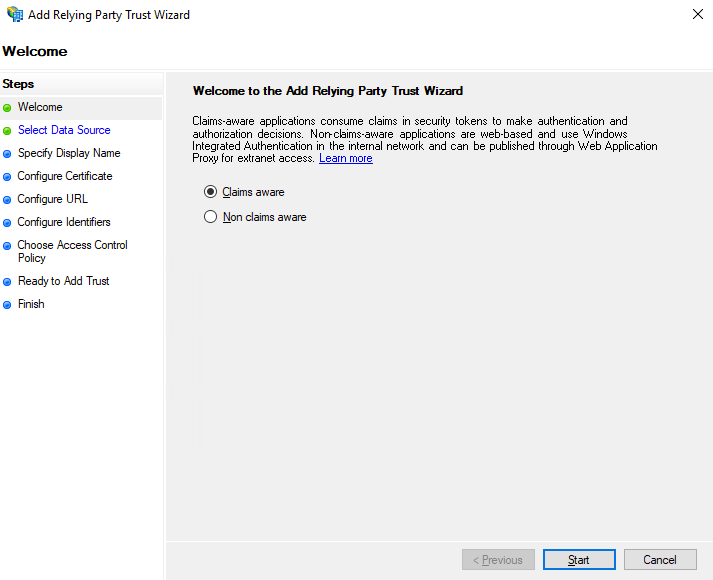
You will be presented a wizard screen. Click Start to start the process of adding a relying trust party.
Select Enter Data About the Party Manually and click Next.
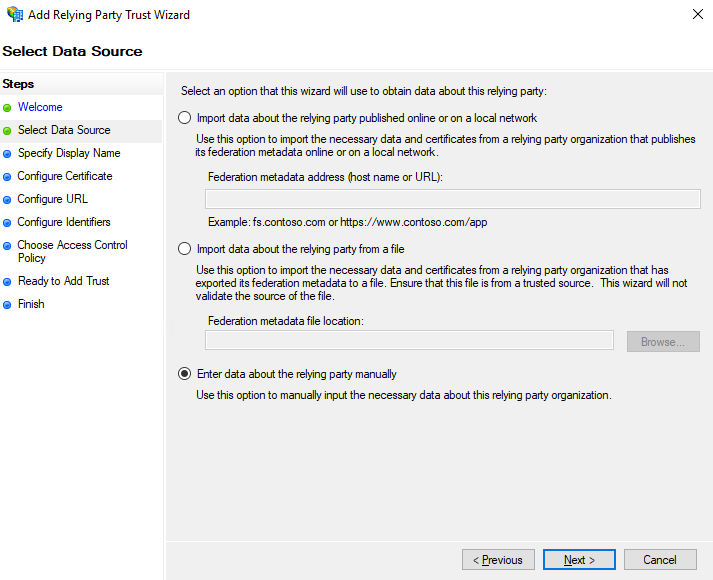
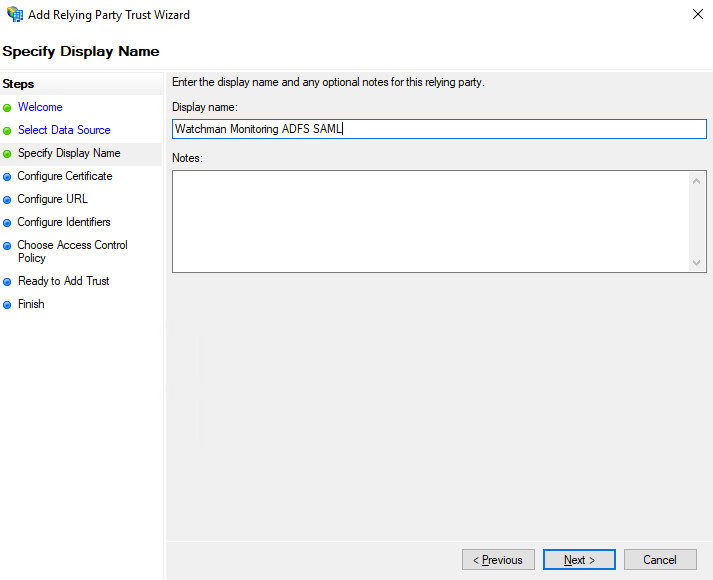
Enter a Display name: for the Relying Party Trust and click Next.
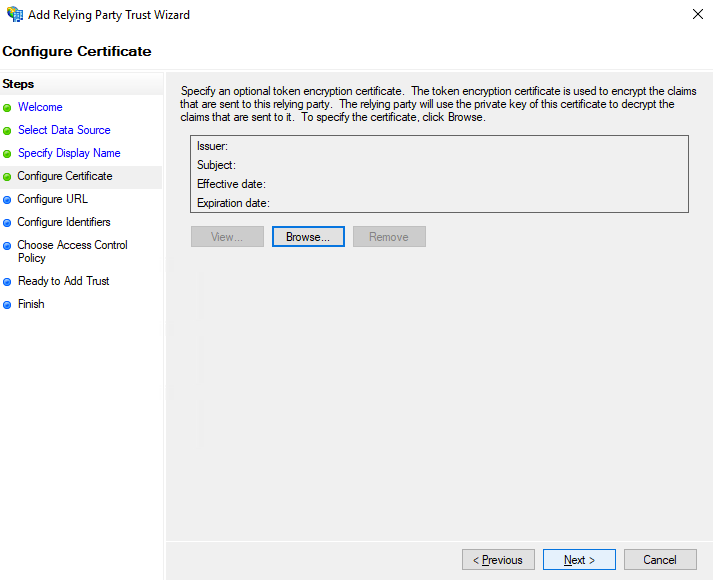
Click Next to skip over the optional token encryption certificate.
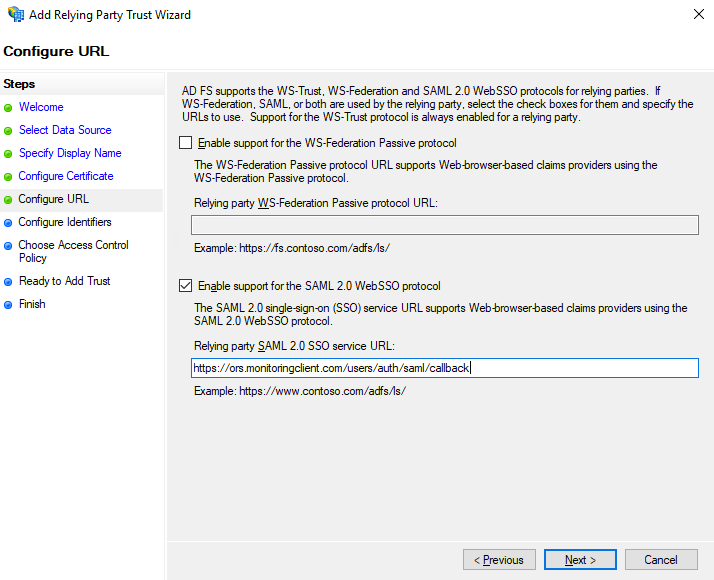
Select the Enable support for the SAML 2.0 WebSSO protocol.
Enter the ACS Callback URL for the Relying party SAML 2.0 SSO service URL: and click Next.
Add the SP ACS/Endpoint URL Entity ID URL for the Relying party trust identifier: and click Add.
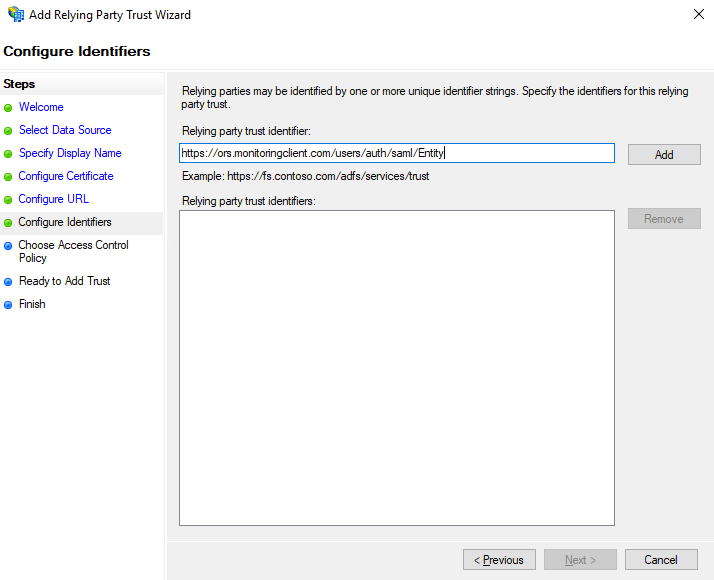
The URL will be displayed under Relying party trust identifiers:. Click Next.
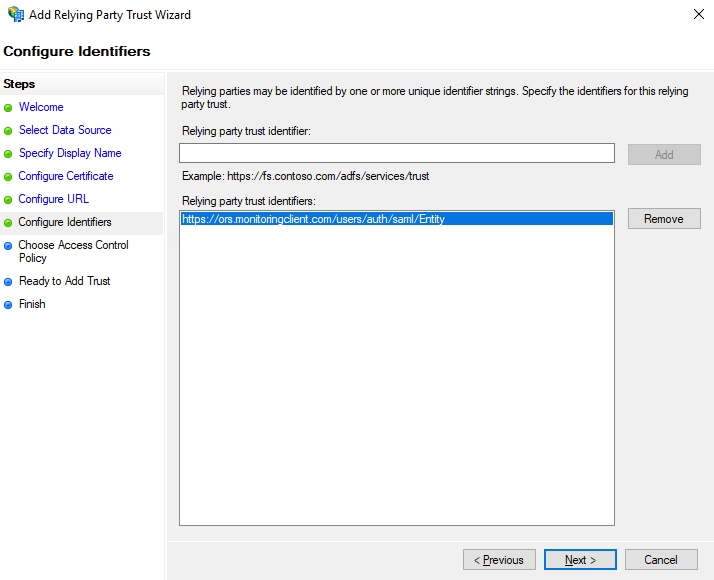
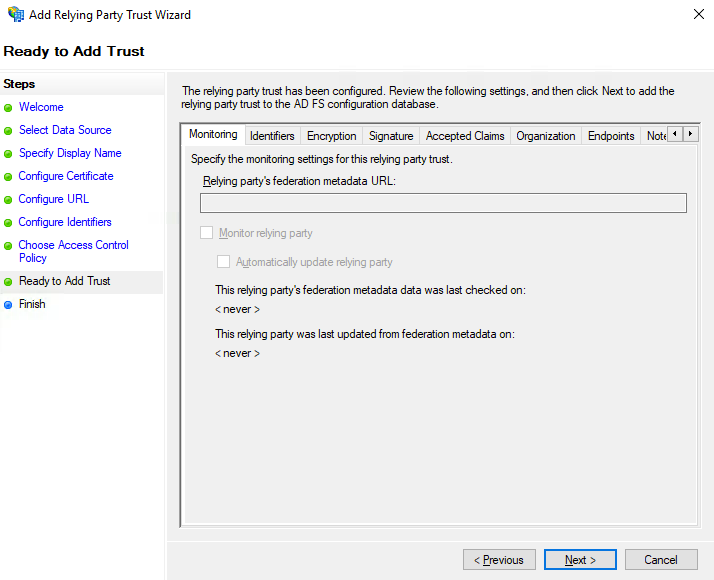
Click Next to Add the trust.
On the Finish screen, select the Configure claims issuance policy for this application and click Close.
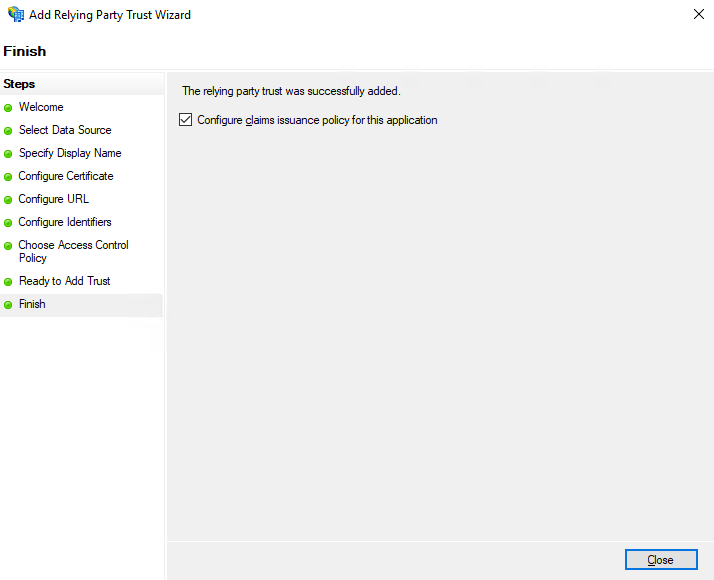
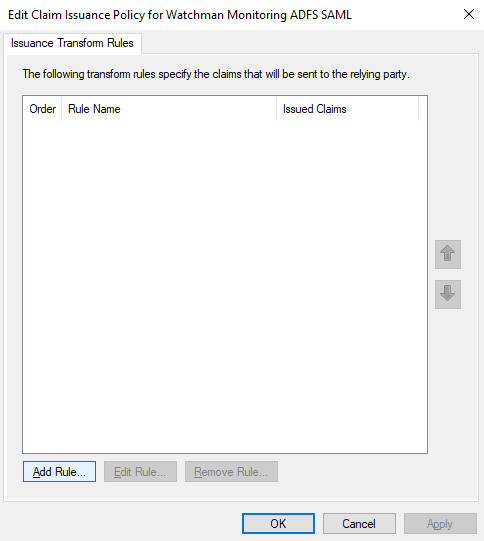
Immediately after closing Relying Party Trust window, the Issuance Transform Rules window will open.
Click Add Rule… button.
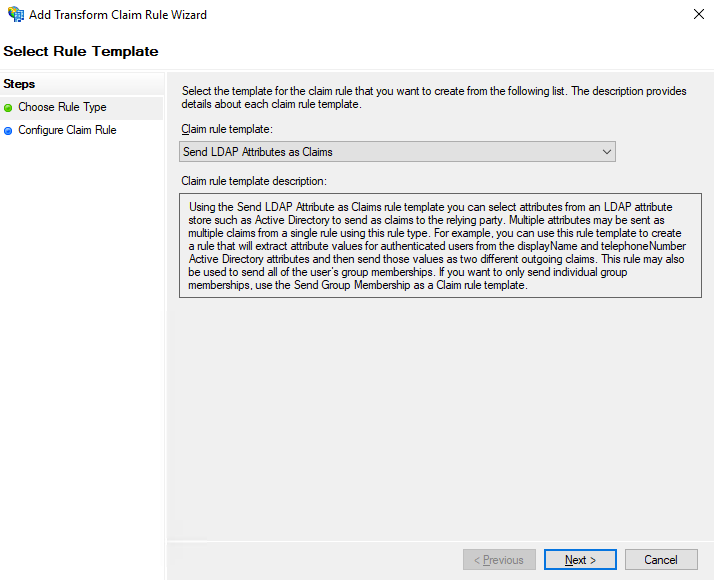
In the Add Transform Claim Rule Wizard that opens, Select Send LDAP Attributes as Claims from the Claim rule template: dropdown, then click Next.
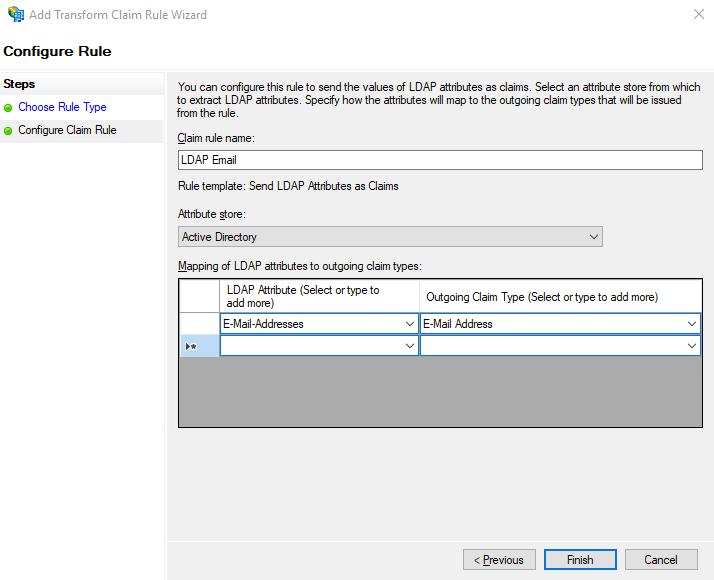
Set the Claim rule name: to LDAP Email, and map the E-Mail-Addresses LDAP Attribute to the E-Mail Address Outgoing Claim Type, and click Finish.
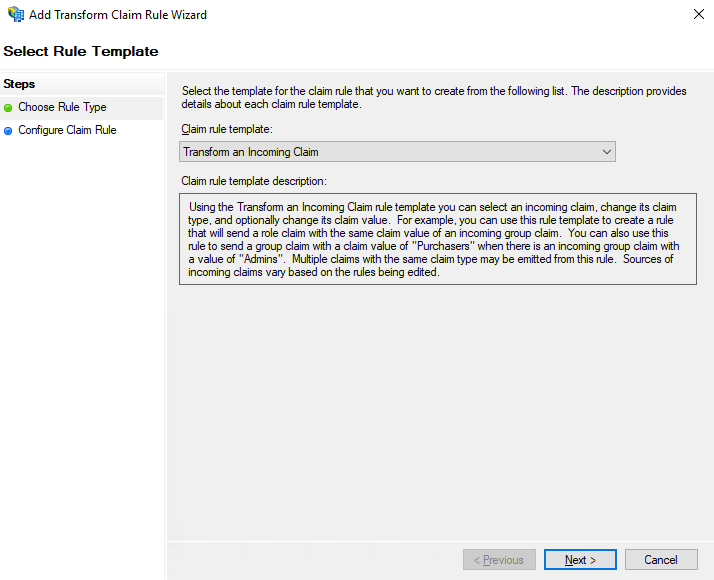
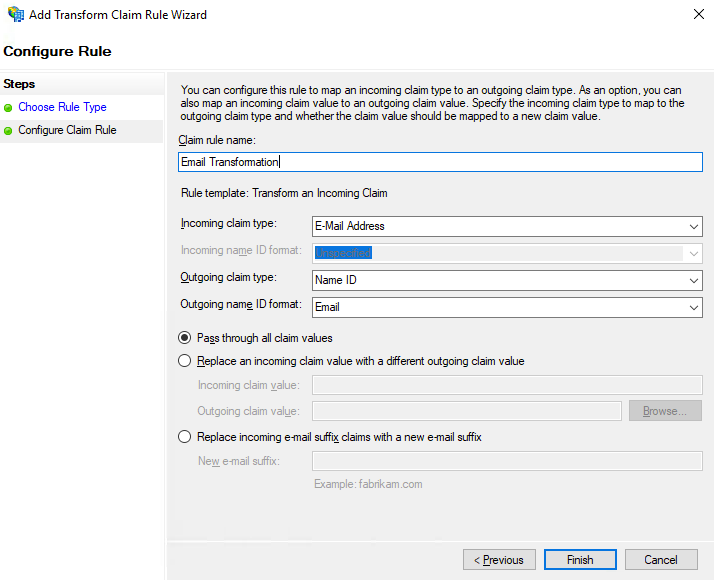
In the Add Transform Claim Rule Wizard that opens, Select Transform an Incoming Claim from the Claim rule template: dropdown, then click Next.
Set the following:
Claim rule name: to Email Transformation.
Incoming claim type: to E-Mail Address
Outgoing claim type: to Name ID
Outgoing name ID format: to Email.
Select Pass through all claim values, and click Finish.
Related Articles
- Configuring Google OAuth2 for Single Sign On
- Single Sign on and Two Factor Authentication Options
- Supported SAML Authentication Providers
Permalink: https://watchmanmonitoring.com/saml-sso