Changing your Subdomain
It is possible to change your subdomain of your Watchman Monitoring account. This process requires intervention from Watchman Monitoring Support and opening a support request is the easiest method to get the process started.
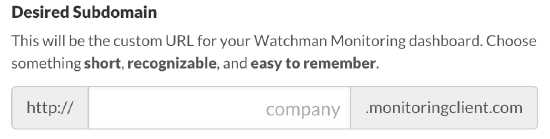
Request a Subdomain Change
Making a change to your subdomain is not a problem. We will make a change on our side, and the computers will auto-update without additional interaction on your part.
To change your subdomain of your Watchman Monitoring account, please submit a request to support with the desired subdomain.
e.g. ourremotesupport.monitoringclient.com to ors.monitoringclient.com
We will verify the desired subdomain availability and arrange for the update.
Note
Our system supports a single name change at a time. If we change your subdomain, all computers must be updated to the new subdomain before it can be changed again. This process should be automatic, and computer records will go stale, if they’ve not updated.
Important
Windows Monitoring Client Agents will need to be manually removed and reinstalled to update branding. Reporting will not be affected.
Warning
If you are using the Zendesk integration and the Watchman Monitoring Zendesk App, you will need to update the app. You can learn more about the Zendesk App by Watchman Monitoring.
Warning
If you are using Autotask or ConnectWise integrations, you will need to update the callback for those integrations. You can learn more here about Configuring the Autotask Extension Callout or ConnectWise API Callback Configuration.